Preview
The live preview of your app - when the pane opens, what it shows while building, updating and after deploy, and restoring a sleeping project.
The preview is your app, running, inside the chat. You can click through it, add data and try every screen while Vibe Coder works.
When it opens
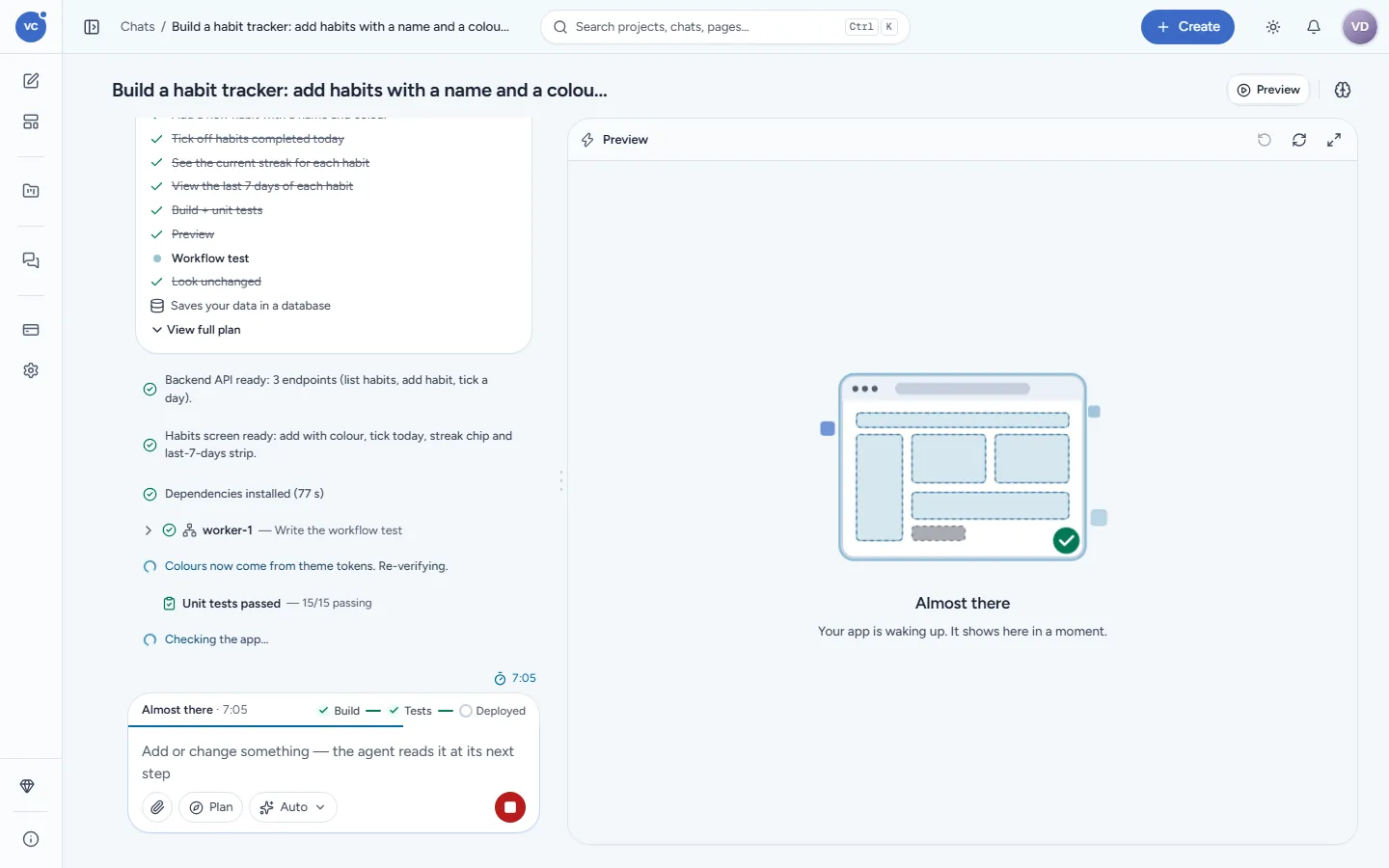
The side pane opens by itself at the showcase step: the moment your app first runs. It does not open just because you sent a message. Once open in a chat it stays open for every follow-up.
You can also open it yourself with the pane toggle in the chat header (Preview and Design, plus Code with Advanced view).
What it shows
Moment | In the pane |
|---|---|
First build, app not running yet | Nothing; the pane is closed |
Built — starting the preview… | The app is starting |
App runs | Your app, live |
You asked for a change | The old version stays with Updating your app… on top until the new one runs; no "installing" flash over a working app |
A check found an issue | Still your app; the transcript says Found an issue, fixing it… |
App deployed | The pane switches to the deployed app at its permanent link |
The pane header has small labelled actions: Open app (in a new tab), Open in REM CloudHub (the app's page there: deploys, versions, logs), Ticket (when your organisation tracks builds in Jira), and Restart preview.
A project that was asleep
If you come back after more than 30 minutes, the project's sandbox may have been put to sleep. Opening the preview, or sending a change, brings it back from your saved code in about a minute with the notice Restoring your previous session…. Just opening the chat to read it does not wake it up.
Mobile and screen sizes
The preview shows the app at the pane's width. To see it full size, use Open app: before deploy it opens the preview address (only you can open it); after deploy it opens the deployed app at its permanent link.
Design board
Design opens a board of screen designs for the app. Ask "show me three looks for the home screen" and Vibe Coder draws them as artboards you can compare, edit and approve; the approved look is then applied to the app.